1. Learning Goals
Determine how pixels in a SPHEREx cutout map to the pixels in the parent SPHEREx spectral image.
Understand the structure of the ePSF extension in a SPHEREx cutout (which is the same as the ePSF extension in the parent spectral image).
Learn how to tell which version of the SPHEREx spectral image you are looking at, and how to interpret this information to obtain the correct ePSF extension for the SPHEREx spectral images.
Learn which plane in a SPHEREx cutout ePSF extension cube most accurately describes the coordinates you are interested in.
2. SPHEREx Overview
SPHEREx is a NASA Astrophysics Medium Explorer mission that launched in March 2025. During its planned two-year mission, SPHEREx will obtain 0.75-5 micron spectroscopy over the entire sky, with deeper data in the SPHEREx Deep Fields. SPHEREx data will be used to:
constrain the physics of inflation by measuring its imprints on the three-dimensional large-scale distribution of matter,
trace the history of galactic light production through a deep multi-band measurement of large-scale clustering,
investigate the abundance and composition of water and biogenic ices in the early phases of star and planetary disk formation.
The community will also mine SPHEREx data and combine it with synergistic data sets to address a variety of additional topics in astrophysics.
More information is available in the SPHEREx Explanatory Supplement.
3. Imports
The following packages must be installed to run this notebook.
# Uncomment the next line to install dependencies if needed.
# !pip install astropy matplotlib numpy astroquery photutils
import http.client
import glob
import re
import time
import urllib.error
import copy
from packaging.version import Version
import astropy.units as u
import matplotlib.pyplot as plt
import numpy as np
from astropy.coordinates import SkyCoord
from astropy.io import fits
from astropy.table import Table
from astropy.visualization import quantity_support
from astropy.wcs import WCS
from astroquery.ipac.irsa import Irsa
from photutils.psf import ImagePSF
# The time it takes to read SPHEREx files can exceed
# astropy's default timeout limit. Increase it.
from astropy.utils.data import conf
conf.remote_timeout = 120
# Let matplotlib recognize astropy Quantities and auto-label axes with their units.
quantity_support()/home/runner/work/irsa-tutorials/irsa-tutorials/.tox/py312-buildhtml/lib/python3.12/site-packages/tqdm/auto.py:21: TqdmWarning: IProgress not found. Please update jupyter and ipywidgets. See https://ipywidgets.readthedocs.io/en/stable/user_install.html
from .autonotebook import tqdm as notebook_tqdm
<astropy.visualization.units.quantity_support.<locals>.MplQuantityConverterFormatted at 0x718c42ad0d40>4. Get SPHEREx Cutout and Obtain Position on Parent Frame
In this section, we show how to obtain a SPHEREx cutout and obtain the pixel position of the cutout on the parent LVF image.
4.1 Obtain SPHEREx Cutout
We first obtain a SPHEREx cutout for a given coordinate of interest from IRSA archive.
For this we define a coordinate and a size of the cutout.
Both should be defined using astropy units.
The goal is to obtain the cutout and then extract the PSF corresponding to the coordinates of interest.
coord = SkyCoord(ra=305.59875000000005 * u.degree, dec=41.14888888888889 * u.degree, frame="icrs")
size = 0.01 * u.degree
Once we defined the coordinates of interest and the size of the cutout, we run a TAP query to gather all SPHEREx spectral images that cover the coordinates.
# Define a query that will search the appropriate SPHEREx metadata tables
# for spectral images that cover the chosen coordinates of interest.
# Return the cutout data access URL and the time of observation.
# Sort by observation time.
query = f"""
SELECT
    'https://irsa.ipac.caltech.edu/' || a.uri || '?center={coord.ra.deg},{coord.dec.deg}d&size={size.value}' AS uri,
    p.time_bounds_lower, p.energy_bandpassname, p.time_bounds_lower, p.time_bounds_upper, p.provenance_version
FROM spherex.artifact a
JOIN spherex.plane p ON a.planeid = p.planeid
WHERE 1 = CONTAINS(POINT('ICRS', {coord.ra.deg}, {coord.dec.deg}), p.poly)
ORDER BY p.time_bounds_lower
"""

# Execute the query and return as an astropy Table.
t1 = time.time()
results = Irsa.query_tap(query)
results = results.to_table()
print("Time to do TAP query: {:2.2f} seconds.".format(time.time() - t1))
print("Number of images found: {}".format(len(results)))
Time to do TAP query: 14.06 seconds.
Number of images found: 413
For this example, we focus on the first one of the retrieved SPHEREx spectral images.
spectral_image_url = results['uri'][0]
print(spectral_image_url)
https://irsa.ipac.caltech.edu/ibe/data/spherex/qr2/level2/2025W18_1B/l2b-v20-2025-240/4/level2_2025W18_1B_0023_2D4_spx_l2b-v20-2025-240.fits?center=305.59875000000005,41.14888888888889d&size=0.01
4.2 Read SPHEREx Cutout
Next, we use standard astropy tools to open the fits image and to read the different headers and data. Transient read errors occur sometimes, so we’ll catch those and retry a few times.
# Max number of times to retry transient read errors.
max_retries = 3
for attempt in range(max_retries):
    try:
        # Read the data.
        with fits.open(spectral_image_url) as hdul:
            image_hdul = copy.deepcopy(hdul)
            cutout_header = hdul['IMAGE'].header
            cutout = hdul['IMAGE'].data
        break
    except (TimeoutError, urllib.error.HTTPError, http.client.IncompleteRead,
            http.client.RemoteDisconnected):
        if attempt == max_retries - 1:
            raise
time.sleep(10 * (attempt + 1))hdul.info()Filename: /home/runner/.cache/astropy/download/url/33f3e79db9867fef91881d4f15cc09bf/contents
No. Name Ver Type Cards Dimensions Format
0 PRIMARY 1 PrimaryHDU 5 ()
1 IMAGE 1 ImageHDU 239 (6, 6) float32
2 FLAGS 1 ImageHDU 146 (6, 6) int32
3 VARIANCE 1 ImageHDU 119 (6, 6) float32
4 ZODI 1 ImageHDU 119 (6, 6) float32
5 PSF 1 ImageHDU 509 (101, 101, 121) float32
6 WCS-WAVE 1 BinTableHDU 18 1R x 3C [13J, 20J, 520E]
The downloaded SPHEREx image cutout contains 5 FITS layers, which are described in the SPHEREx Explanatory Supplement.
Let’s also get the version of the image. The version is needed later to decide how to handle the PSF. For obtaining the version of the image, we define a handy function.
def parse_version(v):
    # detect modifiers
    modifier = None
    base = v

    if "+" in v:
        base, modifier = v.split("+", 1)

    base_version = Version(base)

    if modifier is None:
        return (0, base_version, 0)

    # extract numeric part if present
    m = re.search(r'\d+', modifier)
    modnum = int(m.group()) if m else 0

    return (1, base_version, modnum)
We apply that function to the image and print the version.
this_version = parse_version( image_hdul['PRIMARY'].header["VERSION"] )
print(f"Current version is {this_version}")
Current version is (1, <Version('6.4')>, 1)
4.3 Determine the Pixel Location of the Cutout on the Parent SPHEREx Image
Since the PSF is spatially varying over the parent LVF image, we first want to figure out the image pixels of the cutout. To identify the zone which covers the coordinates of interest, we first need to translate these coordinates to the pixel coordinates on the parent large SPHEREx image from which the cutout was created. We do this by first determining the pixel coordinates of our coordinates of interest on the cutout itself.
wcs = WCS(cutout_header)
xpix_cutout, ypix_cutout = wcs.world_to_pixel(coord)

print(f"Pixel values of coordinates of interest on cutout image: x = {xpix_cutout}, y = {ypix_cutout}")
Pixel values of coordinates of interest on cutout image: x = 2.1740528583705068, y = 2.3529490762661016
Next, we use the CRPIX1A and CRPIX1A header keywords (which describe the center of the cutout on the parent SPHEREx image) to shift the (x,y) coordinates of input to the parent SPHEREx image.
crpix1a = cutout_header["CRPIX1A"]
crpix2a = cutout_header["CRPIX2A"]

xpix_orig = 1 + xpix_cutout - crpix1a
ypix_orig = 1 + ypix_cutout - crpix2a

print(f"Pixel values of coordinates of interest on parent SPHEREx image: x = {xpix_orig}, y = {ypix_orig}")
Pixel values of coordinates of interest on parent SPHEREx image: x = 223.17405285837052, y = 2007.3529490762662
We will use these coordinates later to obtain the correct spatial PSF.
5. Obtain the ePSF Depending on Image Version
The PSFs included in the SPHEREx LVF images has been updated. Some of the images therefore still include the old PSF (referred to as “PSF”), while newer versions of the images include the new PSF (referred to as “ePSF”). Differently than the previously used PSF, the ePSF is not an optical PSF. Instead, the ePSF is a subpixel-resolved model of the pixel-convolved PSF, which predicts pixel values for a point source at arbitrary sub-pixel positions. Additionally, we implemented a simpler way to read the PSF layer - it is now simply a binary table with array columns.
The differentiation is as follows:
Versions earlier than
7.0contain the old PSF (saved in thePSFFITS layer). These are QR-1 and QR-2 data.Versions after (including)
7.0contain the new ePSF (saved in theePSFFITS layer). These are QR-3 and DR1 data.
We advice the users to only use the new ePSF for scientific analyses. In the following, we show how to obtain the ePSF in these two cases.
5.1 Obtaining the ePSF (versions 7.0)
The newer ePSFs are stored in the ePSF layer in the FITS file of the LVF image. Let’s read that in from the image HDU list, which we have obtained above.
Note that the ePSFs are stored in the form of a binary table, which makes it straight forward to obtain additional information on the ePSF (such as its location on the larger SPHEREx LVF image).
try:
    epsf_hdu = image_hdul["EPSF"]
except KeyError:
    print(
        "This image does not contain the EPSF extension. "
        "It was likely created with an older version. "
        "Please proceed to Section 5.2."
    )
else:
    epsf_bintable = Table(epsf_hdu.data)
    epsf_header = epsf_hdu.header
    print("ePSF loaded.")
This image does not contain the EPSF extension. It was likely created with an older version. Please proceed to Section 5.2.
5.2 Obtaining the old PSF (versions 7.0)
We advice the users not to use the older PSFs, which are stored in the PSF layer in the FITS file of the older (versions 7.0) LVF images.
Since in these older versions the ePSFs are not provided in the FITS images, we have to obtain them from the respective calibration products.
For this, we first have to figure out the detector on which the image was taken, because the PSF depends on the wavelength (hence detector).
this_detector = image_hdul['IMAGE'].header["DETECTOR"]
print(f"Detector is {this_detector}")
Detector is 4
Next, we load the calibration file for that detector. Note that each detector has one ePSF calibration file as for now we do not assume that the calibration changes as a function of time. The ePSF calibration file contains the same information which is also added to the newer version images.
The ePSF calibration files (together with other calibration files) are stored in the SPHEREx s3 AWS bucket.
Specifically, the ePSF calibration files are stored in the respective release directory (e.g., qr3/) and the subsequent epsf/ directory).
We first construct a dictionary linking the detectors with the most current ePSFs in this bucket.
ePSF_calibs = {
    "1": "https://nasa-irsa-spherex.s3.us-east-1.amazonaws.com/qr3/epsf/cal-epsf-v1-2026-191/1/epsf_D1_spx_cal-epsf-v1-2026-191.fits",
    "2": "https://nasa-irsa-spherex.s3.us-east-1.amazonaws.com/qr3/epsf/cal-epsf-v1-2026-191/2/epsf_D2_spx_cal-epsf-v1-2026-191.fits",
    "3": "https://nasa-irsa-spherex.s3.us-east-1.amazonaws.com/qr3/epsf/cal-epsf-v2-2026-191/3/epsf_D3_spx_cal-epsf-v2-2026-191.fits",
    "4": "https://nasa-irsa-spherex.s3.us-east-1.amazonaws.com/qr3/epsf/cal-epsf-v1-2026-191/4/epsf_D4_spx_cal-epsf-v1-2026-191.fits",
    "5": "https://nasa-irsa-spherex.s3.us-east-1.amazonaws.com/qr3/epsf/cal-epsf-v1-2026-191/5/epsf_D5_spx_cal-epsf-v1-2026-191.fits",
    "6": "https://nasa-irsa-spherex.s3.us-east-1.amazonaws.com/qr3/epsf/cal-epsf-v1-2026-191/6/epsf_D6_spx_cal-epsf-v1-2026-191.fits"
}
Now we can rad in the correct calibration product ePSF corresponding to the detector in which the image was taken.
with fits.open(ePSF_calibs[str(this_detector)]) as hdul:
    hdul.info()
    epsf_bintable = Table(hdul['EPSF'].data)
    epsf_header = hdul['EPSF'].header
    epsf_mosaic = hdul['EPSF_MOSAIC'].data
Filename: /home/runner/.cache/astropy/download/url/bfd1ea3acee63547814dc8dbd0f6890f/contents
No. Name Ver Type Cards Dimensions Format
0 PRIMARY 1 PrimaryHDU 16 ()
1 EPSF 1 BinTableHDU 56 441R x 11C [J, J, E, E, E, E, J, E, E, E, 1089D]
2 EPSF_MOSAIC 1 ImageHDU 20 (713, 713) float64
The calibration product contains the same EPSF extension as the SPHEREx LVF image files.
In addition, the calibration products contains an EPSF_MOSAIC layer, which is not available in the LVF images. The ePSF mosaic allows a quick visualization of all the ePSFs on the detector.
fig = plt.figure(figsize=(16,10))
ax1 = fig.add_subplot(1,2,1)

im1 = ax1.imshow(epsf_mosaic, origin='lower')
ax1.set_xlabel("$x$")
ax1.set_ylabel("$y$")
plt.show()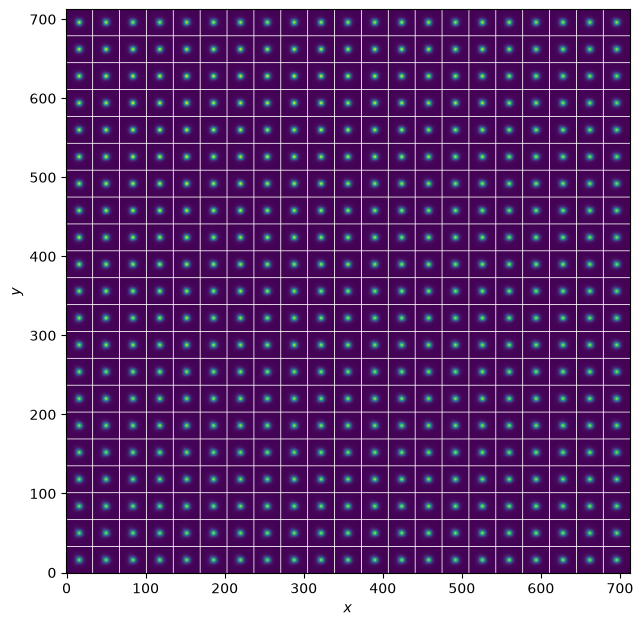
6.Determine the PSF Corresponding to Coordinates of Interest
Finally, as we have the ePSF loaded (either from the image directly or from the calibration product), we can now proceed to obtain the correct spatial ePSF corresponding to our cutout.
Since we now know the (x,y) pixel values of the cutout on the parent SPHEREx LVF image (see above), we can identify the PSF zone. In the following we first extract the zone pixel coordinates from the XCTR_* and YCTR_* keys in the PSF header.
6.1 Understanding the ePSF Format
However, let’s first have a look at the ePSF header and a couple other properties to understand the ePSF better.
epsf_headerXTENSION= 'BINTABLE' / binary table extension
BITPIX = 8 / array data type
NAXIS = 2 / number of array dimensions
NAXIS1 = 8752 / length of dimension 1
NAXIS2 = 441 / length of dimension 2
PCOUNT = 0 / number of group parameters
GCOUNT = 1 / number of groups
TFIELDS = 11 / number of table fields
EXTNAME = 'EPSF ' / extension name
DETECTOR= '4 ' / 1-3: SWIR, 4-6: MWIR
OVSMPX = 5
OVSMPY = 5
MAXIT = 10
SMOOTH = 'quartic '
JUNKCLN = 1
KEEPNAT = 3.5
KEEPOS = 17.5
DETCOORD= 'sky ' / MWIR pixels flipped on X to match SWIR view
ORDERING= 'x-fast then y'
BINSRC = 'filename'
GEOMSRC = 'uniform active-pixel tiling'
NEFFSRC = 'stats table exact filename match'
WVMSRC = 'stats table exact filename match'
CWAVESRC= 'spectral_wcs CWAVE'
CBANDSRC= 'spectral_wcs CBAND'
TTYPE1 = 'BINX '
TFORM1 = 'J '
TTYPE2 = 'BINY '
TFORM2 = 'J '
TTYPE3 = 'XCENTER '
TFORM3 = 'E '
TUNIT3 = 'pixel '
TTYPE4 = 'YCENTER '
TFORM4 = 'E '
TUNIT4 = 'pixel '
TTYPE5 = 'XWIDTH '
TFORM5 = 'E '
TUNIT5 = 'pixel '
TTYPE6 = 'YWIDTH '
TFORM6 = 'E '
TUNIT6 = 'pixel '
TTYPE7 = 'NSTAR '
TFORM7 = 'J '
TTYPE8 = 'NEFF_MEAN'
TFORM8 = 'E '
TTYPE9 = 'CWAVE '
TFORM9 = 'E '
TUNIT9 = 'um '
TTYPE10 = 'CBAND '
TFORM10 = 'E '
TUNIT10 = 'um '
TTYPE11 = 'EPSF '
TFORM11 = '1089D '
TDIM11 = '(33,33) '
HISTORY Headers standardized by SSDC on 2026-06-26T22:53:36.094 (UTC)
HISTORY Calibration source file: epsf_4_20260507.fits We now show some of the most important general information directly from the ePSF header.
print(f"Oversampling in x: {epsf_header['OVSMPX']}")
print(f"Oversampling in y: {epsf_header['OVSMPY']}")
print(f"Size of the ePSF (oversampled): {epsf_header['TDIM11']}")
print(f"Number of ePSFs in total (= total number of zones): {epsf_header['NAXIS2']}")
Oversampling in x: 5
Oversampling in y: 5
Size of the ePSF (oversampled): (33,33)
Number of ePSFs in total (= total number of zones): 441
Next, let’s first look at the binary table.
epsf_bintableIt’s just a binary table but note that the last column EPSF is a 2d-array! This makes loading the ePSF very simple as shown below.
There are also other columns such as BINX and BINY which are the ePSF zone identifications and their corresponding x,y cooordinates XCENTER and YCENTER, respectively.
From this table, we can also obtain the number of zones in x and y:
nzones_x = np.max(epsf_bintable["BINX"]+1)
nzones_y = np.max(epsf_bintable["BINY"]+1)
print(f"Number of zones in x-direction: {nzones_x}")
print(f"Number of zones in y-direction: {nzones_y}")
Number of zones in x-direction: 21
Number of zones in y-direction: 21
In addition, the table contains other useful information such as the ePSF area (, NEFF_MEAN) and the center wavelength at the PSF (C_MEAN). This is further explained in Section 6.1.
6.2 Determine the ePSF Corresponding to Coordinates of Interest
Now, we proceed to obtain the ePSF corresponding to our cutout position (equal to the source position).
Above we have already obtained the pixel position of our cutout on the parent LVF image. We can then match this position to the 0-indexed zone centers given in the binary table (XCENTER and YCENTER).
dist = np.sqrt( (xpix_orig - epsf_bintable["XCENTER"])**2 + (ypix_orig - epsf_bintable["YCENTER"])**2  )
sel_zone = np.where( dist == np.min(dist))[0][0]
bin_x = epsf_bintable["BINX"][sel_zone]
bin_y = epsf_bintable["BINY"][sel_zone]
print(f"Row in ePSF binary table: {sel_zone}")
print(f"BINX = {bin_x}, BINY = {bin_y}")
Row in ePSF binary table: 422
BINX = 2, BINY = 20
We then simply select the right row in the ePSF binary table. We can use the sel_zone (which is the row in the ePSF binary table) directly, or select by BINX and BINY.
Since the EPSF column is a cells of 2d-arrays, it is very easy to load the ePSF from that.
sel = np.where( (epsf_bintable["BINX"] == bin_x) & (epsf_bintable["BINY"] == bin_y))[0][0]
epsf = epsf_bintable["EPSF"][sel]
print(f"Shape of ePSF: {epsf.shape}")
print(f"N_eff of PSF: {epsf_bintable['NEFF_MEAN'][sel]}")
print(f"Wavelength of PSF: {epsf_bintable['CWAVE'][sel]} um")
Shape of ePSF: (33, 33)
N_eff of PSF: 4.379484176635742
Wavelength of PSF: 2.433234453201294 um
Finally, display the ePSF.
fig = plt.figure(figsize=(5,5))
ax1 = fig.add_subplot(1,1,1)
im1 = ax1.imshow(epsf, origin="lower")

plt.colorbar(im1, ax=ax1, shrink=0.5)

ax1.set_xlabel("$x$ (oversampled pixels)")
ax1.set_ylabel("$y$ (oversampled pixels)")

plt.show()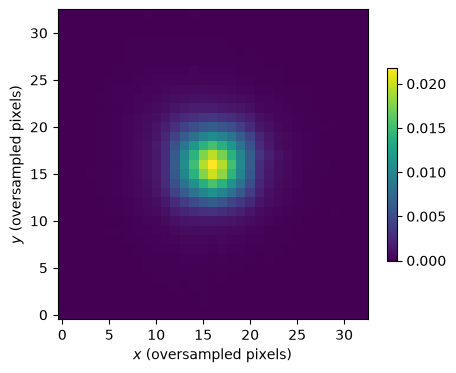
7. Appendix
7.1 More Things to Do with the ePSF!
The new ePSF binary table contains some more useful information in addition to the ePSFs themselves. Here we explore some of these additional data.
One interesting thing to do is to plot the ePSF area () as a function of zone position (XCENTER and YCENTER) and wavelength (CWAVE). Below, we show how to access this information and how to visualize it.
fig = plt.figure(figsize=(16,4))
plt.subplots_adjust(wspace=0.3, hspace=0.0)
ax1 = fig.add_subplot(1,3,1)
ax2 = fig.add_subplot(1,3,2)
ax3 = fig.add_subplot(1,3,3)

## Spatial distribution of N_eff
x = epsf_bintable["XCENTER"]
y = epsf_bintable["YCENTER"]
z = epsf_bintable["NEFF_MEAN"]
im1 = ax1.scatter(x, y, c=z)

ax1.set_xlabel("$x$")
ax1.set_ylabel("$y$")
plt.colorbar(im1 , ax=ax1, label=r"$N_{\rm eff}$ (PSF effective area)")

## As a matrix (note the ii<->jj swap)
mat = np.zeros((nzones_y,nzones_x))
for ii in range(nzones_x):
    for jj in range(nzones_y):
        sel = np.where( (epsf_bintable["BINX"] == ii) & (epsf_bintable["BINY"] == jj))[0][0]
        mat[jj,ii] = epsf_bintable["NEFF_MEAN"][sel]
im2 = ax2.imshow(mat , origin="lower", aspect=nzones_x/nzones_y)

ax2.set_xlabel("$x$ PSF zones")
ax2.set_ylabel("$y$ PSF zones")
plt.colorbar(im2 , ax=ax2, label=r"$N_{\rm eff}$ (PSF effective area)")

## As a function of wavelength
# CWAVE has no unit metadata in the FITS table, so attach the known unit (microns)
# explicitly rather than relying on a hardcoded axis label string.
wave = epsf_bintable["CWAVE"] * u.micrometer  # wavelength at the center of the PSF zone
y = epsf_bintable["NEFF_MEAN"]
ax3.scatter(wave, y, c=z , marker="o", s=5)

ax3.set_xlabel(f"Wavelength [{wave.unit.to_string('latex_inline')}]")
ax3.set_ylabel(r"$N_{\rm eff}$ (PSF effective area)")

plt.show()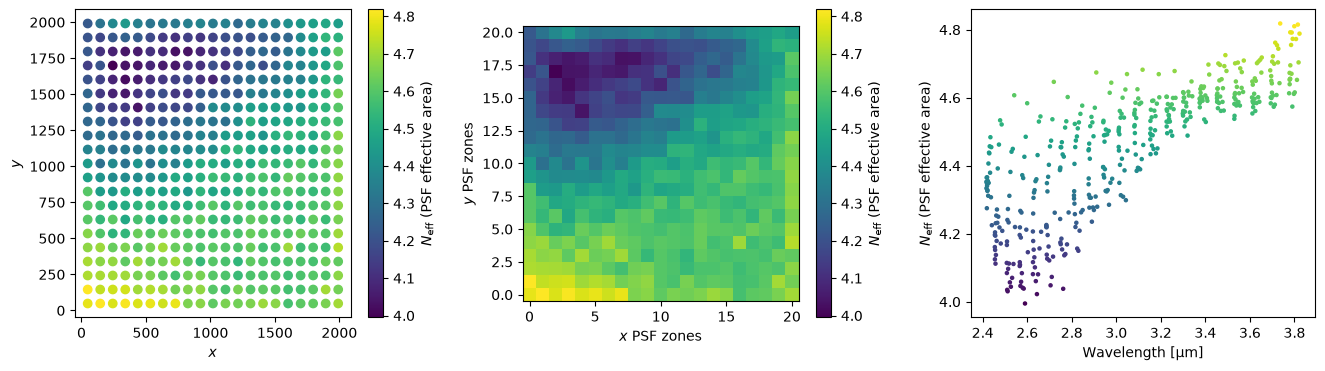
The left and middle panel show the change of the PSF effective area as a function of pixels on this detector (3). One can see areas of worse (= larger area) ePSFs, which is due to the detector and optics specifics. The right panel shows how the effective PSF area varies as a function of wavelength. Generally, the PSF grows for redder wavelengths.
7.2. Using the SPHEREx (e)PSF in Forward Modeling (e.g., Tractor)
The PSF returned by this notebook is oversampled relative to the native SPHEREx detector pixel grid. This is intentional: the PSF is evaluated on a fine sub-pixel grid so that it can represent different intra-pixel source positions accurately.
Tools such as Tractor do not expect an oversampled PSF directly. Instead, they require a PSF that is pixel-integrated at the native detector resolution and evaluated at the correct sub-pixel phase of the source. If you pass the oversampled PSF directly into Tractor without resampling, the effective PSF width and normalization will be incorrect, which can lead to systematic differences relative to the SPHEREx Spectrophotometry Tool.
To use this PSF for forward modeling or fitting, you must:
Shift the oversampled PSF to the source’s sub-pixel position,
Downsample (integrate) it onto the native SPHEREx pixel grid, and
Normalize the resulting PSF before passing it to Tractor.
The ePSF originates from the Photutils package, therefore it can be directly used directly with the EPSModel class (note that in later version of photutils this is changed to the ImagePSF class):
from photutils.psf import ImagePSFTo demonstrate this, we use our ePSF which we have loaded above in Section 5.1.
First, we retrieve the oversampling factor of the ePSF. The oversampling is given in the ePSF binary table header, which we have loaded above.
ovs = (
    int(epsf_header.get("OVSMPY", 1)),
    int(epsf_header.get("OVSMPX", 1))
)
print(f"Oversampling of ePSF: {ovs}")
Oversampling of ePSF: (5, 5)
Using the oversampling factor, we can then construct the ePSF Photutils model.
epsf_model = ImagePSF(data=epsf, oversampling=ovs)The ePSF is still in oversampled resolution. Some photometer codes (such as Tractor) can use the PSF only on the native pixel size. We therefore have to rebin the PSF back to the native SPHEREx resolution. In this process, we have to take into account where in the image coordinates a source lands; whether it lands in the center of a pixel of off center. This will affect how the PSF is rebinned. This is especially important for PSFs that are undersampled with respect to the pixel size (as it is the case for SPHEREx).
We first define a function that does the rebinning:
def render_epsf_stamp_centered(
        epsf: ImagePSF,
        x0: float,
        y0: float,
        stamp_size: int = 11,
        unit_flux: bool = True,
    ):
        """
        Render an ePSF model into a stamp that is centered on (x0, y0) in
        *image pixel coordinates*, and return the lower-left index of the stamp.

        Parameters
        ----------
        epsf : `photutils.psf.epsf.ImagePSF`
            Must support epsf.evaluate(x, y, flux=..., x_0=..., y_0=...).
        x0, y0 : `float`
            Source centroid in image pixel coordinates (pixel centers).
        stamp_size : `int`
            Size of the returned square stamp (pixels).
        unit_flux : `bool`
            If True, renormalize stamp so sum == 1.

        Returns
        -------
        psf_stamp : `numpy.ndarray`
            Rendered PSF image with shape (``stamp_size``, ``stamp_size``).
        x_ll, y_ll : `int`
            Integer lower-left pixel index of the stamp in the image coordinate system.
            That is, psf_stamp[0,0] corresponds to image pixel (y_ll, x_ll).
        """

        # Convert to Python floats (accepts ints and NumPy scalar types).
        x0 = float(x0)
        y0 = float(y0)

        # Half-size in pixel-center coordinates
        half = (stamp_size - 1) / 2.0

        # Integer pixel index of lower-left corner of the stamp
        # (pixel-center convention)
        x_ll = int(np.floor(x0 - half))
        y_ll = int(np.floor(y0 - half))

        # Pixel-center coordinates where the PSF is evaluated
        x_centers = x_ll + np.arange(stamp_size)
        y_centers = y_ll + np.arange(stamp_size)

        Y, X = np.meshgrid(y_centers, x_centers, indexing="ij")

        # Evaluate ePSF at native resolution
        psf_stamp = epsf.evaluate(X, Y, flux=1.0, x_0=x0, y_0=y0)

        if unit_flux:
            s = psf_stamp.sum()
            if s > 0 and np.isfinite(s):
                psf_stamp /= s

        return psf_stamp, x_ll, y_ll
Note that this function makes use of the Photutils class EPSFModel, the ePSF Photutils model which we have defined above.
Important are x0 and y0, which tell the function where on a pixel the source ends up. The function uses sub-pixel sampling to do the rebinning. For example, the PSF will look differently if the source falls on half pixels, such as at position (100.5, 100.5). The function also returns the lower left corner coordinates which can be used to drop the image into a large mosaic (for example for image simulations).
For illustrative purposes, we construct two PSF stamps (in SPHEREx resolution) at two different position for the source. For the PSF size (in SPHEREx pixels), we choose 11 by 11 (note that this works best if the stamp size has an odd pixel number).
psf_stamp1 , x_ll_1, y_ll_1 = render_epsf_stamp_centered(epsf = epsf_model , x0=50, y0=50, stamp_size=11, unit_flux = True)
print(f"Drop-in position ({x_ll_1},{y_ll_1}), total flux: {np.sum(psf_stamp1)}")

psf_stamp2 , x_ll_2, y_ll_2 = render_epsf_stamp_centered(epsf = epsf_model , x0=100.5, y0=100.5, stamp_size=11, unit_flux = True)
print(f"Drop-in position ({x_ll_2},{y_ll_2}), total flux: {np.sum(psf_stamp2)}")
Drop-in position (45,45), total flux: 0.9999999999999998
Drop-in position (95,95), total flux: 1.0
Now we can plot the two PSF stamp patches side-by-side for comparison. Since the second one has a sub-pixel shift (as the source lands between pixels), it is not centered in the cutout.
fig = plt.figure(figsize=(6,3))
plt.subplots_adjust(wspace=0.5, hspace=0.0)
ax1 = fig.add_subplot(1,2,1)
ax2 = fig.add_subplot(1,2,2)

ax1.imshow(psf_stamp1, origin="lower")
ax1.set_title("Source at (50,50)")
ax1.set_xlabel("$x$ (SPHEREx pixels)")
ax1.set_ylabel("$y$ (SPHEREx pixels)")

ax2.imshow(psf_stamp2, origin="lower")
ax2.set_title("Source at (100.5,100.5)")
ax2.set_xlabel("$x$ (SPHEREx pixels)")
ax2.set_ylabel("$y$ (SPHEREx pixels)")

plt.show()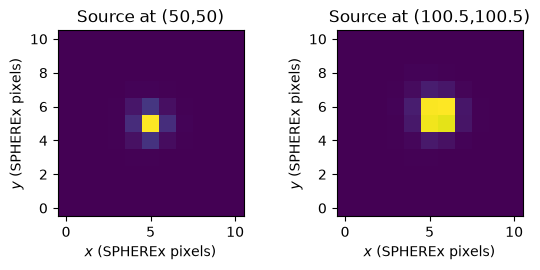
Acknowledgements
About this notebook
Updated: 17 September 2026
Contact: Contact IRSA Helpdesk with questions or problems.
Runtime: Approximately 30 seconds.