Learning Goals
By the end of this tutorial, you will:
Learn how to access cloud-hosted Roman and Rubin simulated images.
Learn how to find the Roman and Rubin images covering a sky position with the IRSA Simple Image Access (SIA) service.
Learn how to launch an interactive Firefly instance inside JupyterLab.
Learn how to use the Firefly Jupyterlab extension to visualize cloud-hosted simulated images, overplot ds9 regions, overplot catalogs in Parquet format, and create 3 color images.
Introduction
The purpose of this tutorial is to become familiar with the simulated Roman and Rubin data published through OpenUniverse2024, and to become familiar with the Firefly JupyterLab Extension for visualizing astronomical data products.
OpenUniverse2024 is a project to simulate spatially overlapping imaging surveys to be carried out by the Nancy Grace Roman Telescope and the Vera C. Rubin Observatory. The simulations were carried out on Argonne’s Theta cluster and consist of:
The LSST ELAIS-S1 Deep Drilling Field (DDF)
The Roman Time-Domain Survey (TDS) shifted to overlap the ELAIS region and LSST DDF
Overlapping LSST Wide-Fast-Deep (WFD) survey (with rolling cadence)
Overlapping Roman Wide-Area Survey (WAS) in the same region
A deep-field calibration region of the Roman WAS in the same region
This tutorial works with the full simulation, which covers the entire survey footprint. More information about the dataset can be found at IRSA’s holding of this dataset, and the OpenUniverse2024 paper describes how the simulation was produced.
Firefly is an open-source web-based UI library for astronomical data archive access and visualization developed at Caltech and used by multiple space- and ground-based astrophysics archives. In addition to being used to make web applications, Firefly can be used from Python via Firefly Python client. The Firefly JupyterLab Extension makes it particularly easy to use Firefly to efficiently visualize cloud-hosted astronomical data using JupyterLab instances running locally or on cloud.
If you are new to OpenUniverse2024, the Quickstart tutorial introduces the directory layout, the parquet catalogs, and the SIA image search that this notebook builds on.
Imports
astropy.io.fits for accessing FITS files
numpy for numerical computing
matplotlib.pyplot for creating static visualizations of FITS images
matplotlib.patches for annotating visualizations of FITS images
astropy.wcs for dealing with astronomical world coordinate systems
astropy.units for dealing with astronomical units
astropy.coordinates.SkyCoord for dealing with astronomical coordinates
astroquery.ipac.irsa.Irsa for asking IRSA which images cover a position
hpgeom for converting a sky position into a HEALPix region index
json for reading the cloud location returned by the image search
firefly_client.FireflyClient for using the Firefly python client
astropy.nddata.Cutout2D for making image cutouts
reproject.reproject_interp for rotating cutouts so both telescopes’ panels point the same way
io.BytesIO for writing a fits file to an in-memory stream
warnings for silencing the harmless FITS WCS warnings
# Uncomment the next line to install dependencies if needed.
# !pip install numpy astropy s3fs matplotlib firefly_client 'astroquery>=0.4.10' hpgeom reproject
from astropy.io import fits
import numpy as np
from matplotlib import pyplot as plt
from matplotlib import patches
from astropy import wcs
from astropy import units as u
from astropy.coordinates import SkyCoord
from astroquery.ipac.irsa import Irsa
import hpgeom
import json
from firefly_client import FireflyClient
from astropy.nddata import Cutout2D
from reproject import reproject_interp
from io import BytesIO
import warnings
# Filter out the FITSFixedWarning, which is consequenceless and gets thrown every time you deal with a WCS
# in a Roman openuniverse simulated image using astropy.
warnings.simplefilter('ignore', category=wcs.FITSFixedWarning)1. Learn where the OpenUniverse2024 data are hosted in the cloud
The OpenUniverse2024 data are hosted in the cloud via Amazon Web Services (AWS). To access these data, you need to create a client to read data from Amazon’s Simple Storage Service (s3) buckets, and you need to know some information about those buckets. OpenUniverse2024 contains simulations of the Roman Wide-Area Survey (WAS) and the Roman Time Domain Survey (TDS). In this tutorial, we will focus on the WAS.
We also configure IRSA’s Simple Image Access (SIA) service here, which later sections use to locate the Roman and Rubin images covering a coordinate.
BUCKET_NAME = "nasa-irsa-simulations"
OU_PREFIX = "openuniverse2024"
# The input "truth" catalogs of galaxy, star, and transient properties that the images were simulated from.
TRUTH_FILES_PATH = f"{OU_PREFIX}/roman/full/roman_rubin_cats_v1.1.2_faint"
# Point the astroquery IRSA client at the simulated-data services, which are
# separate from the ones serving IRSA's observed data.
Irsa.sia_url = "https://irsa.ipac.caltech.edu/simulated/SIA"
Irsa.tap_url = "https://irsa.ipac.caltech.edu/simulated/TAP"
OU_ROMAN_SIA_COLLECTION = "simulated_roman_openuniverse2024"
OU_RUBIN_SIA_COLLECTION = "simulated_rubin_openuniverse2024"
# A small radius is all we need, since we only want images containing a given point.
SEARCH_RADIUS = 1 * u.arcsec2. Roman Images
The Nancy Grace Roman Space Telescope will carry out a wide-area survey (WAS) in the near infrared. OpenUniverse2024 simulates that survey as individual exposures, each covering one detector’s worth of sky. Bands include F184, H158, J129, K213, W146, Y106.
The survey stores those exposures by pointing and detector rather than by sky position, so in this section we define a function that asks the image search which exposure covers a position, and then reads it.
Define a function that retrieves a Roman simulated image given a sky position and filter.
The Roman collection holds both the Wide-Area Survey and the Time Domain Survey, so we keep only the WAS exposures and then only the band we want. Many exposures cover any given position, so we sort by observation time and take the earliest.
Having found the file, we prefix its path with s3:// and open it with astropy. The science image sits in the first extension, and we take the WCS from the same header as an astropy.wcs.WCS object. The function returns a dictionary of both, along with the header itself so we can look at it later, and the path so that later cells can reuse it instead of searching a second time.
Notebook Cell
def get_roman_image(coord, filter):
    """Read the Roman WAS exposure covering a position in a given filter.

    Parameters
    ----------
    coord : `~astropy.coordinates.SkyCoord`
        Sky position to search around.
    filter : str
        Roman bandpass name, e.g. ``'H158'``.

    Returns
    -------
    dict
        Keys ``'data'`` (`~numpy.ndarray`), ``'wcs'`` (`~astropy.wcs.WCS`),
        ``'header'`` (`~astropy.io.fits.Header`) and ``'fpath'`` (str, the S3
        path of the exposure).

    Raises
    ------
    ValueError
        If no WAS exposure in that filter covers ``coord``.
    """
    results = Irsa.query_sia(pos=(coord, SEARCH_RADIUS),
                             collection=OU_ROMAN_SIA_COLLECTION)

    in_was = results[['WAS_simple_model' in str(r['obs_id']) for r in results]]
    in_band = in_was[[str(r['energy_bandpassname']).strip() == filter
                      for r in in_was]]
    if len(in_band) == 0:
        raise ValueError(f"No Roman WAS {filter}-band images cover "
                         f"{coord.to_string('hmsdms')}")

    in_band.sort('t_min')
    selected_image = in_band[0]

    cloud_info = json.loads(selected_image['cloud_access'])['aws']
    image_s3_fpath = f"{cloud_info['bucket_name']}/{cloud_info['key']}"

    with fits.open(f"s3://{image_s3_fpath}", fsspec_kwargs={"anon": True}) as hdul:
        # retrieve science data, which sits in the first extension
        image_data = hdul[1].data

        # make wcs using header
        image_wcs = wcs.WCS(hdul[1].header)

        return {'data': image_data, 'wcs': image_wcs, 'header': hdul[1].header,
                'fpath': image_s3_fpath}
Inspect a simulated Roman image
Choose a filter and a position within the survey footprint
coord = SkyCoord(ra=9.6205000, dec=-44.0641694, unit="deg")
filter_roman = 'H158' #F184, H158, J129, K213, W146, and Y106 are available
Retrieve the data and header information from the simulated Roman image corresponding to the chosen position and filter.
image_roman = get_roman_image(coord, filter_roman)Understand the size of a simulated Roman image.
# Number of pixels (Y, X)
image_roman['data'].shape
(4088, 4088)# Pixel size (scale Y, scale X) [degrees/pixel]
image_roman['wcs'].proj_plane_pixel_scales()[<Quantity 3.04137746e-05 deg>, <Quantity 3.00150219e-05 deg>]# Image size (FOV Y, FOV X)
[(num * size).to('arcsec') for num, size in zip(
image_roman['data'].shape, image_roman['wcs'].proj_plane_pixel_scales())][<Quantity 447.59343814 arcsec>, <Quantity 441.72507487 arcsec>]The field of view of a Roman exposure is ~450 arcsec, at a pixel scale of ~0.11 arcsec.
Look at everything else the image file contains
So far we have read the science image, but each exposure carries more than that. Listing the extensions shows the full picture.
with fits.open(f"s3://{image_roman['fpath']}",
               fsspec_kwargs={"anon": True}) as hdul:
    hdul.info()
Filename: <class 's3fs.core.S3File'>
No. Name Ver Type Cards Dimensions Format
0 PRIMARY 1 PrimaryHDU 63 ()
1 SCI 1 ImageHDU 68 (4088, 4088) float64
2 ERR 1 ImageHDU 68 (4088, 4088) float32
3 DQ 1 ImageHDU 70 (4088, 4088) int32 (rescales to uint32)
Each file holds a primary header carrying the observation metadata but no pixels, followed by three 4088x4088 planes:
SCI = the simulated science image, in electrons per second
ERR = the estimated uncertainty on each science pixel
DQ = the data quality mask, flagging pixels that should not be trusted
Use the WCS from the Roman simulated header to convert the specified coordinate into a pixel position.
Notebook Cell
def coord_to_xy(w, coord):
    """Convert a sky position into (x, y) pixel indices.

    Parameters
    ----------
    w : `~astropy.wcs.WCS`
        WCS of the image the indices refer to.
    coord : `~astropy.coordinates.SkyCoord`
        Sky position to convert.

    Returns
    -------
    tuple of int
        Pixel indices as ``(x, y)``.
    """
    return w.world_to_array_index(coord)[::-1] #reverse since 0th axis is y, 1st axis is x
coord_arr_idx = coord_to_xy(image_roman['wcs'], coord)
coord_arr_idx(array(2318), array(3029))Use matplotlib imshow to create a static visualization of the Roman simulated image and overplot the selected position.
Each telescope points independently, so neither survey’s images arrive with north pointing up: this Roman exposure is turned about 170 degrees from north, and the Rubin visit in the next section about 160 degrees. Every figure in this notebook is therefore resampled onto a north-up grid before plotting, so that all of them, and both telescopes, can be read the same way. The target grid is a plain gnomonic (TAN) one, so the SIP distortion carried by the exposure headers is resampled away along with the rotation. The rotation leaves the frame tilted inside a slightly larger box, with empty wedges in the corners.
Notebook Cell
def stretch_color(data, clipPercent):
    """Percentile clip limits for displaying an image.

    Parameters
    ----------
    data : `~numpy.ndarray`
        Image values; NaNs are ignored.
    clipPercent : float
        Percentage clipped off each end of the distribution.

    Returns
    -------
    tuple of float
        Lower and upper limits, for passing to ``clim``.
    """
    # nan-aware: rotating to north up leaves empty corners
    return np.nanpercentile(data, (0 + clipPercent, 100 - clipPercent))


def north_up(data, image_wcs, size, binning=1):
    """Resample onto a north-up grid, keeping the original pixel scale.

    Parameters
    ----------
    data : `~numpy.ndarray`
        Image to resample.
    image_wcs : `~astropy.wcs.WCS`
        WCS of ``data``.
    size : `~astropy.units.Quantity`
        Angular width of the output grid.
    binning : int, optional
        Sample this many input pixels per output pixel. Values greater than 1
        are enough for displaying a whole exposure and much quicker than
        resampling every pixel.

    Returns
    -------
    `~numpy.ndarray`
        The resampled image.
    `~astropy.wcs.WCS`
        WCS of the resampled image.
    """
    scale = abs(image_wcs.proj_plane_pixel_scales()[0].to(u.deg).value) * binning
    npix = int(round(size.to(u.deg).value / scale))

    ny, nx = data.shape
    center = image_wcs.pixel_to_world((nx - 1) / 2, (ny - 1) / 2)

    target = wcs.WCS(naxis=2)
    target.wcs.ctype = ['RA---TAN', 'DEC--TAN']
    target.wcs.crpix = [(npix + 1) / 2, (npix + 1) / 2]
    target.wcs.crval = [center.ra.deg, center.dec.deg]
    target.wcs.cdelt = [-scale, scale]

    return reproject_interp((data, image_wcs), target, shape_out=(npix, npix))[0], target


def full_frame_north_up(image, binning=4):
    """North-up view of a whole exposure, for display only.

    Parameters
    ----------
    image : dict
        Image dictionary with ``'data'`` and ``'wcs'`` keys, as returned by
        `get_roman_image` or `get_rubin_image`.
    binning : int, optional
        Sample this many input pixels per output pixel.

    Returns
    -------
    `~numpy.ndarray`
        The resampled image.
    `~astropy.wcs.WCS`
        WCS of the resampled image.
    """
    ny, nx = image['data'].shape
    fov = nx * image['wcs'].proj_plane_pixel_scales()[0].to(u.arcsec)
    return north_up(image['data'], image['wcs'], 1.2 * fov, binning=binning)
roman_display, roman_display_wcs = full_frame_north_up(image_roman)
plt.imshow(roman_display, origin='lower',
clim=stretch_color(roman_display, 1)
)
plt.plot(*coord_to_xy(roman_display_wcs, coord), '+', mfc='none', mec='r',
markersize=15, markeredgewidth=2)
plt.axis('off')(np.float64(-0.5), np.float64(1225.5), np.float64(-0.5), np.float64(1225.5))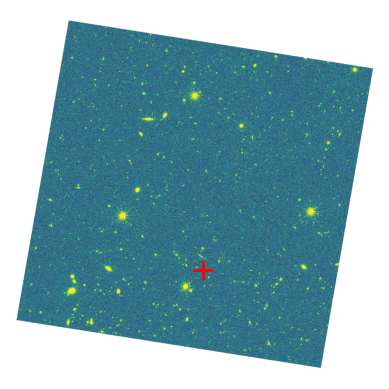
3. Rubin Images
OpenUniverse2024 includes simulated Rubin images in the following filters: u, g, r, i, z, y. As with Roman, these are stored by visit and detector rather than by sky position, so we again let the SIA service tell us which images cover our position. In this section, we define functions that retrieve a Rubin image for a chosen position and filter, returning data in the same structure as the function we defined above for Roman.
Retrieve Rubin images
The image search returns one row per image, with the cloud location of each tucked inside a cloud_access JSON string. Many visits cover any given position, so we sort by observation time and take the earliest.
Notebook Cell
def get_rubin_image_fpaths(coord, filters):
    """Find the Rubin images covering a position in each of several filters.

    Parameters
    ----------
    coord : `~astropy.coordinates.SkyCoord`
        Sky position to search around.
    filters : list of str
        Rubin bandpass names, e.g. ``['g', 'r', 'i']``.

    Returns
    -------
    dict
        Filter name to S3 path of the image covering ``coord``.

    Raises
    ------
    ValueError
        If any requested filter has no image covering ``coord``.
    """
    # One search covers every band, so ask once and sort the results out by band
    # afterwards rather than searching again for each one.
    results = Irsa.query_sia(pos=(coord, SEARCH_RADIUS),
                             collection=OU_RUBIN_SIA_COLLECTION)

    fpaths = {}
    for filter in filters:
        # Band names come back like "r_57", so compare only the part before the underscore.
        in_band = results[[str(r['energy_bandpassname']).split('_')[0] == filter
                           for r in results]]
        if len(in_band) == 0:
            raise ValueError(f"No Rubin {filter}-band images cover "
                             f"{coord.to_string('hmsdms')}")

        in_band.sort('t_min')
        cloud_info = json.loads(in_band['cloud_access'][0])['aws']
        fpaths[filter] = f"{cloud_info['bucket_name']}/{cloud_info['key']}"

    return fpaths
Notebook Cell
def get_rubin_image(coord, filter):
    """Read the Rubin image covering a position in a given filter.

    Parameters
    ----------
    coord : `~astropy.coordinates.SkyCoord`
        Sky position to search around.
    filter : str
        Rubin bandpass name, e.g. ``'r'``.

    Returns
    -------
    dict
        Keys ``'data'`` (`~numpy.ndarray`), ``'wcs'`` (`~astropy.wcs.WCS`) and
        ``'fpath'`` (str, the S3 path of the image).
    """
    image_s3_fpath = get_rubin_image_fpaths(coord, [filter])[filter]

    with fits.open(f"s3://{image_s3_fpath}", fsspec_kwargs={"anon": True}) as hdul:
        # retrieve science data, which sits in the first extension
        image_data = hdul[1].data

        # make wcs using header
        image_wcs = wcs.WCS(hdul[1].header)

        # hand back the path too, so later cells can reuse it instead of
        # asking the image search for it a second time
        return {'data': image_data, 'wcs': image_wcs, 'fpath': image_s3_fpath}
Inspect a simulated Rubin image
Choose a filter and retrieve the data and header information from the simulated Rubin image covering our position.
filter_rubin = 'r'
image_rubin = get_rubin_image(coord, filter_rubin)
Understand the size of a simulated Rubin image.
# Number of pixels (Y, X)
image_rubin['data'].shape
(4004, 4096)# Pixel size (scale Y, scale X) [degrees/pixel]
image_rubin['wcs'].proj_plane_pixel_scales()[<Quantity 5.55815653e-05 deg>, <Quantity 5.5575227e-05 deg>]# Image size (FOV Y, FOV X)
[(num * size).to('arcsec') for num, size in zip(
image_rubin['data'].shape, image_rubin['wcs'].proj_plane_pixel_scales())][<Quantity 801.17491466 arcsec>, <Quantity 819.49006765 arcsec>]The field of view of a Rubin detector is ~800 arcsec, at a pixel scale of ~0.2 arcsec. A single Rubin detector therefore covers nearly twice the sky of one Roman exposure, at roughly twice the pixel scale.
Use matplotlib imshow to create a static visualization of the Rubin simulated image and overplot the selected position.
The Rubin figure below covers a different patch of sky than the Roman figure in Section 2. Each is centered on its own exposure and sized to its own field of view, so the Rubin panel is nearly twice as wide on the sky as the Roman one. What they share is the marked position, which falls inside both.
rubin_display, rubin_display_wcs = full_frame_north_up(image_rubin)

plt.imshow(rubin_display, origin='lower',
           clim=stretch_color(rubin_display, 1)
           )

plt.plot(*coord_to_xy(rubin_display_wcs, coord), '+', mfc='none', mec='r',
         markersize=15, markeredgewidth=2)
plt.axis('off')
(np.float64(-0.5), np.float64(1228.5), np.float64(-0.5), np.float64(1228.5))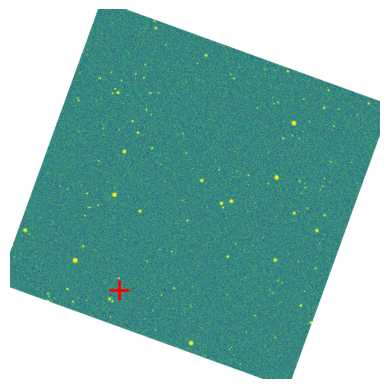
4. Compare simulated Roman and Rubin cutouts
To compare the two telescopes’ images on equal terms we trim each full frame down to the same patch of sky with Cutout2D, which extracts a rectangular region centered on a sky position and returns an updated WCS along with the pixels, so the trimmed image still knows where it sits on the sky.
# Choose cutout size
cutout_size = 50*u.arcsec
Create the cutouts
# Cut oversized: the rotation below needs data in the corners to draw from.
cutout_roman = Cutout2D(image_roman['data'], coord, size=1.5*cutout_size, wcs=image_roman['wcs'])
cutout_rubin = Cutout2D(image_rubin['data'], coord, size=1.5*cutout_size, wcs=image_rubin['wcs'])
Rotate both cutouts so that north points up
The full frames above were rotated for display; here we do the same to the cutouts, using the same helper. The two telescopes are turned about 10 degrees apart from each other, so without this the panels would not line up. Each keeps its own pixel scale, so Roman still shows the finer sampling.
# Rotating a same-size grid would leave empty corners, so each cutout above was cut
# oversized and is resampled down to the size we actually want.
roman_data, roman_wcs = north_up(cutout_roman.data, cutout_roman.wcs, cutout_size)
rubin_data, rubin_wcs = north_up(cutout_rubin.data, cutout_rubin.wcs, cutout_size)
Plot static side-by-side comparisons of the cutouts using matplotlib
fig, axs = plt.subplots(1, 2, figsize=(12, 6))


axs[0].imshow(roman_data, origin='lower',
              clim=stretch_color(roman_data, .5)
              )
axs[0].set_title(f"ROMAN in filter {filter_roman}")

axs[1].imshow(rubin_data, origin='lower',
              clim=stretch_color(rubin_data, .5)
              )
axs[1].set_title(f"RUBIN in filter {filter_rubin}")

fig.suptitle(f"Cutouts at ({coord.ra}, {coord.dec}) with {cutout_size} size", fontsize=14)
plt.tight_layout(rect=[0, 0, 1, 0.97])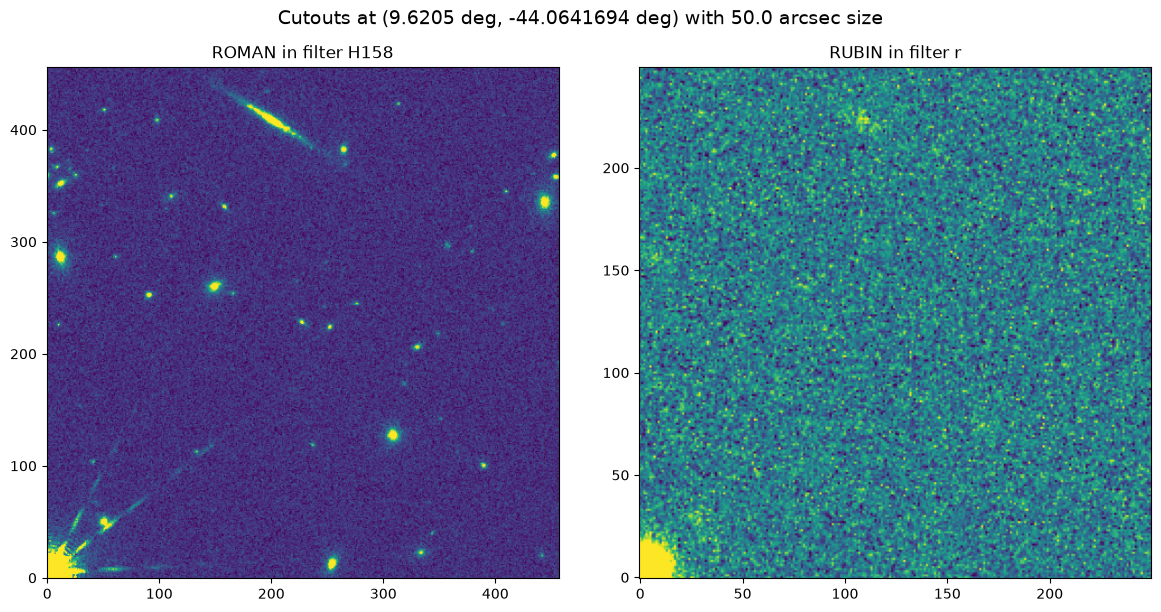
Both panels cover the same patch of sky, at the same size and with north up in each. The difference is stark: the simulated Roman exposure resolves a field full of galaxies, while the same patch in the simulated Rubin image is close to blank. A single Rubin visit is short, so only the brightest sources here rise above its noise, and from the ground its point spread function is broad enough to blend close neighbors together. Roman’s finer pixels and sharper point spread function keep those sources separate. Rubin reaches its full depth by stacking many visits, which is not what we are looking at.
5. Use Firefly to interactively explore the images
Static cutouts only help once you know where to look. Choosing a position worth comparing means exploring the image interactively, and for that we hand it to Firefly.
Launch and initialize Firefly
There are two ways to initialize a Firefly client from Python, depending on whether you’re running the notebook in JupyterLab or not. Assuming you have jupyter-firefly-extensions set up in your environment as explained here, you can use make_lab_client() in JupyterLab, which will open the Firefly viewer in a new tab within the Lab. Otherwise, you can use make_client() in a Jupyter Notebook (or even a Python shell), which will open the Firefly viewer in a new web browser tab.
You also need a Firefly server to communicate with your Firefly Python client. In this notebook, we use a public Firefly server: https://http://localhost:8080/firefly. The URL of the Firefly server is read by both make_client() and make_lab_client() through the environment variable FIREFLY_URL. However, make_client() also allows you to pass the URL directly as the url parameter.
# Uncomment when using within Jupyter Lab with jupyter_firefly_extensions installed
# fc = FireflyClient.make_lab_client()

# Uncomment for contexts other than above
fc = FireflyClient.make_client(url="https://irsacloud.ipac.caltech.edu/firefly")

fc.reinit_viewer() # to clean the state, if this cell ran earlier{'success': True}Define a function that returns the URL for a given S3 filepath
Since the OpenUniverse2024 data are in a public S3 bucket, any file can also be reached over HTTPS. Firefly loads images and catalogs by URL rather than by S3 path, so we use this helper throughout the rest of the notebook.
Notebook Cell
def https_url(s3_fpath):
    """Convert an S3 path into a public HTTPS URL.

    Parameters
    ----------
    s3_fpath : str
        Path of the form ``'bucket/key'``.

    Returns
    -------
    str
        HTTPS URL for the same file.
    """
    if s3_fpath is None:
        return None

    s3_fpath_without_bucket = s3_fpath.split('/', 1)[1]
    return f"https://{BUCKET_NAME}.s3.amazonaws.com/{s3_fpath_without_bucket}"
Let’s generate URL for the Rubin image we plotted above. Clicking on the returned URL will allow you to download this image locally, but this is not required for the rest of the tutorial.
image_s3_fpath_rubin = image_rubin['fpath']
https_url(image_s3_fpath_rubin)'https://nasa-irsa-simulations.s3.amazonaws.com/openuniverse2024/rubin/full/u/descdm/step1_000_w_2024_22/20240609T004129Z/calexp/20250706/r/r_57/5025070601048/calexp_LSSTCam_r_r_57_5025070601048_R23_S11_u_descdm_step1_000_w_2024_22_20240609T004129Z.fits'Send the simulated Rubin image to Firefly using show_fits_image
For displaying the FITS image of the Rubin visit in Firefly, we use show_fits_image:
image_ff_id_rubin = 'rubin-image-filter-r'
fc.show_fits_image(file_input=https_url(image_s3_fpath_rubin),
                   plot_id=image_ff_id_rubin,
                   Title=f"Rubin {filter_rubin}"
             )
{'success': True}Use ds9 region syntax to outline the Roman exposure on the interactive display
The Firefly client includes several methods related to controlling ds9 region overlays. To
overlay a region layer on the loaded FITS images, we can use overlay_region_layer.
Region data is defined in ds9 region syntax that can be found here.
The Rubin visit on display covers more sky than the Roman exposure does, so it is worth seeing where the Roman footprint falls. The corners of the Roman exposure come straight from its WCS, and we draw them as a polygon.
roman_footprint = image_roman['wcs'].calc_footprint()
roman_footprint
array([[ 9.69558016, -43.96362143],
[ 9.72505074, -44.08444863],
[ 9.55408697, -44.10379702],
[ 9.52495478, -43.98292638]])# outline the Roman exposure as a polygon
corner_coords = ' '.join(f'{ra}d {dec}d' for ra, dec in roman_footprint)
roman_regions = [f'icrs;polygon {corner_coords} # text={{Roman {filter_roman}}} color=yellow']
roman_regions_id = 'roman_regions'
# Name the plot explicitly. Without plot_id the layer goes to whichever plot is
# active, which is not necessarily this one if cells are run out of order.
fc.overlay_region_layer(region_data=roman_regions,
title='Roman exposure',
region_layer_id=roman_regions_id,
plot_id=image_ff_id_rubin){'success': True}Send the simulated Roman image to Firefly and align it with Rubin
Now let’s pull up the Roman exposure itself, using the same show_fits_image method:
image_ff_id_roman = 'roman-image-filter-h158'
fc.show_fits_image(file_input=https_url(image_roman['fpath']),
                   plot_id=image_ff_id_roman,
                   Title=f"Roman {filter_roman}"
             )
{'success': True}Also align & lock it with the Rubin display by WCS using align_images so that panning or zooming one moves the other in sync.
fc.align_images(lock_match=True){'success': True}You can pan and zoom around the image display using the same controls as Google Maps or similar map apps (scroll/pinch to zoom, drag to pan, or the magnifying glass icons in the upper left). Try zooming out from the outlined Roman region and see how it sits within the wider Rubin field around it.
6. Use Firefly to overlay sources on the images
Let’s inspect the properties of sources within the Roman footprint we outlined above. For this we will use the input truth files present in S3 bucket.
OpenUniverse2024 includes the input truth files that were used to create the simulated images. These files are in Parquet and HDF5 format, and include information about the properties of galaxies, stars, and transients.
The catalogs are split by HEALPix sky region (nside=32, RING ordering) and the region index appears in each filename, so we can convert our sky position into that index with hpgeom rather than hunting through the directory listing. This is the same approach the Quickstart tutorial takes.
Each region comes as two separate catalogs: a point source catalog holding the stars, and a galaxy catalog. We load both below and overlay each on the image.
region = hpgeom.angle_to_pixel(32, coord.ra.deg, coord.dec.deg, lonlat=True, nest=False)
print(f"HEALPix region for our position: {region}")
HEALPix region for our position: 10307
# Catalog table of star properties (in parquet format)
pointsource_cat_path = f"{BUCKET_NAME}/{TRUTH_FILES_PATH}/pointsource_{region}.parquet"
pointsource_cat_path'nasa-irsa-simulations/openuniverse2024/roman/full/roman_rubin_cats_v1.1.2_faint/pointsource_10307.parquet'# Catalog table of galaxy properties (in parquet format)
galaxy_cat_path = f"{BUCKET_NAME}/{TRUTH_FILES_PATH}/galaxy_{region}.parquet"
galaxy_cat_path'nasa-irsa-simulations/openuniverse2024/roman/full/roman_rubin_cats_v1.1.2_faint/galaxy_10307.parquet'Use Firefly’s show_table to overlay the catalogs on the interactive image
Each catalog spans a whole HEALPix region, which is much larger than the image we are looking at. So before displaying the table, we filter it down to the sky area the Roman exposure actually covers. (Note: you can remove filters through the table UI if you wish to see the entire data)
# Bound the catalogs by the footprint of the Roman image we sent to Firefly.
ra_bounds = (roman_footprint[:, 0].min(), roman_footprint[:, 0].max())
dec_bounds = (roman_footprint[:, 1].min(), roman_footprint[:, 1].max())

# Define the filters to apply
cat_filters = [
    f'("ra" >= {ra_bounds[0]} AND "ra" <= {ra_bounds[1]})',
    f'("dec" >= {dec_bounds[0]} AND "dec" <= {dec_bounds[1]})'
]
cat_filters
['("ra" >= 9.524954784568889 AND "ra" <= 9.725050735278336)',
'("dec" >= -44.10379702171619 AND "dec" <= -43.963621429049894)']You can visualize catalogs interactively with Firefly using show_table. This capability can take many parameters. Here we will simply send our catalog to Firefly so that we can (a) see an interactive table; (b) see this table plotted over the image that we’ve already sent; and (c) use the GUI to quickly create exploratory plots. See if you can use the GUI to quickly determine approximately how many galaxies cover the Roman exposure and what the redshift distribution of these galaxies is.
fc.show_table(file_input=https_url(pointsource_cat_path),
              title='Stars Catalog',
              tbl_id='stars_cat',
              filters=" AND ".join(cat_filters))
{'success': True}gal_cat_tbl_id = 'galaxy_cat'
# may take ~1.25min, because galaxy catalog is a big file
fc.show_table(file_input=https_url(galaxy_cat_path),
title='Galaxy Catalog',
tbl_id=gal_cat_tbl_id,
filters=" AND ".join(cat_filters)){'success': True}For each row in the table you can notice a marker in the image. Selecting a row or marker changes the corresponding marker or row, respectively. You can click on “Details” tab in the UI to show properties of each source selected in image/table.
Use Firefly’s apply_table_filters to show sources of interest
Let’s say the apparent physical size of a galaxy’s disk component is what interests us. So we filter the galaxy catalog table we sent to Firefly down to the galaxies with a disk half-light radius bigger than 1 arcsec. You can use whatever properties you are interested in to filter the table. Notice how the table display, the image overlay, and the active chart all change as the sample shrinks. You can remove this filter or add new ones through the GUI.
For filtering, we will use apply_table_filters method on the galaxy table we loaded above.
fc.apply_table_filters(tbl_id=gal_cat_tbl_id,
                       filters=" AND ".join(cat_filters+['"diskHalfLightRadiusArcsec" > 1']))
{'success': True}You can play with the filters directly from the UI as well. Try removing or adding more filters in the tables and see how markers change.
7. Identify a region of interest to compare cutouts
Sections 5 and 6 gave us two complementary ways to explore the data interactively: panning and zooming around the displayed images, and filtering the catalog table by whatever properties catch our interest. In this section we put both to use to land on a single region worth a closer look, copy its coordinates into the notebook, mark it with a region overlay, and then see how Roman and Rubin compare in that region.
Use Firefly’s pan/zoom/align capabilities to locate a region of interest
You can view the coordinates of your mouse pointer at the bottom left of the display window. To copy the coordinates for a specific coordinate:
Toggle the “Click Lock” to “on” in the bottom right of the image display.
Click on the position of interest, and notice that the coordinate display is now frozen.
Click on “EQ-J2000”, the coordinate label in the bottom left of the image display. The pop-up that opens lets you choose the coordinate system, and the format used when copying — pick the Python format so the value can be pasted straight into a
SkyCoord.Close the pop-up and click the small clipboard icon next to the coordinate readout.
Copy the coordinates from the coordinate display to the Python notebook
Paste the position you copied from the display here. We picked a large disk-shaped galaxy that the Roman image resolves clearly, but that looks like just a fuzzy blob in the Rubin image. Its disk half-light radius of ~2 arcsec is well above the threshold we filtered on in Section 6, which is what caught our eye while panning around.
coords_of_interest = SkyCoord('0h38m36.18s -44d00m12.3s', frame='icrs') # pasted from the UI
coords_of_interest
<SkyCoord (ICRS): (ra, dec) in deg
(9.65075, -44.00341667)>Let’s also define the size of the region we are interested in, which will be used to create cutouts from the images:
cutout_size = 48*u.arcsecUse ds9 region syntax to overplot the selected position
For this we use the id of the region layer we defined above, and add more region data using add_region_data.
point_region = (f'icrs;circle {coords_of_interest.ra.value}d {coords_of_interest.dec.value}d {cutout_size.to(u.deg).value} '
                f'# text={{Region of interest}} color=cyan width=2')
fc.add_region_data(region_data=point_region, region_layer_id=roman_regions_id,
                   plot_id=image_ff_id_rubin)
{'success': True}You should now see a circular region around your target of interest in both the Rubin and Roman images in Firefly.
Plot static side-by-side comparisons of the cutouts using matplotlib
Now that interactive exploration has narrowed things down to a specific region of interest, rather than the arbitrary region we started with in Section 2, let’s compare Roman and Rubin cutouts of it the same way we did in Section 4.
# As in section 4, cut 1.5x oversized so the rotation has data for the corners,
# then resample down onto the cutout_size grid that gets displayed.
cutout_roman = Cutout2D(image_roman['data'], coords_of_interest, size=1.5*cutout_size, wcs=image_roman['wcs'])
cutout_rubin = Cutout2D(image_rubin['data'], coords_of_interest, size=1.5*cutout_size, wcs=image_rubin['wcs'])

roman_data, roman_wcs = north_up(cutout_roman.data, cutout_roman.wcs, cutout_size)
rubin_data, rubin_wcs = north_up(cutout_rubin.data, cutout_rubin.wcs, cutout_size)
fig, axs = plt.subplots(1, 2, figsize=(12, 6))
axs[0].imshow(roman_data, origin='lower',
clim=stretch_color(roman_data, .5)
)
axs[0].set_title(f"ROMAN in filter {filter_roman}")
axs[1].imshow(rubin_data, origin='lower',
clim=stretch_color(rubin_data, .5)
)
axs[1].set_title(f"RUBIN in filter {filter_rubin}")
fig.suptitle(f"Cutouts at ({coords_of_interest.ra:6f}, {coords_of_interest.dec:6f}) with {cutout_size} size", fontsize=14);
plt.tight_layout(rect=[0, 0, 1, 0.97])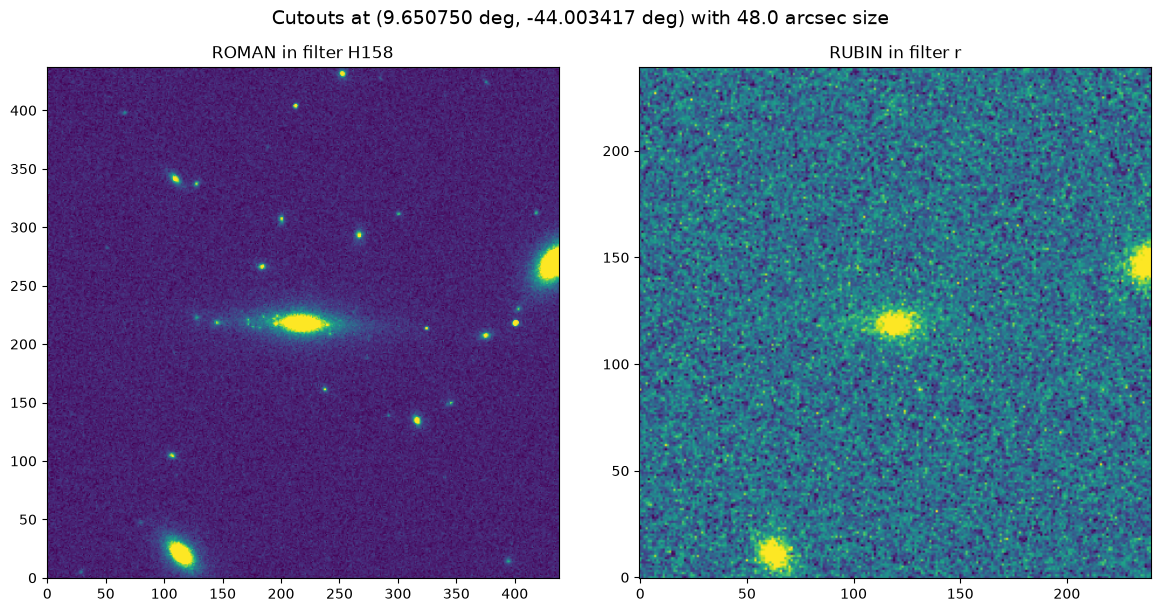
8. Use Firefly to visualize your region in 3-color
Firefly can also combine multiple bands into a false-color image. Since a single Rubin visit doesn’t detect faint sources at all, we make this 3-color image from the Roman exposures instead. We use the following bands:
ROMAN_RGB_FILTERS = ['H158', 'J129', 'Y106']Retrieve closely-overlapping Roman images in the 3 bands
image_roman is the H158 exposure covering coords_of_interest from Section 7. Roman’s WAS filters aren’t tiled identically, so rather than searching each RGB filter around coords_of_interest again, we search around the center of this exposure itself, which keeps the 3 filters closely aligned.
Notebook Cell
def get_roman_fpaths_at_center(image, filters):
    """Find the Roman WAS exposures in other filters closest to an image's center.

    Parameters
    ----------
    image : dict
        Image dictionary as returned by `get_roman_image`, whose center
        defines the search position.
    filters : list of str
        Roman bandpass names to look up at that position, e.g. ``['H158', 'J129', 'Y106']``.

    Returns
    -------
    dict
        Filter name to S3 path of the closest exposure, or ``None`` for a
        filter with no WAS exposure covering the center.
    """
    ny, nx = image['data'].shape
    center = image['wcs'].pixel_to_world((nx - 1) / 2.0, (ny - 1) / 2.0)

    # One search covers every band, so ask once rather than searching again for each filter
    results = Irsa.query_sia(pos=(center, SEARCH_RADIUS),
                             collection=OU_ROMAN_SIA_COLLECTION)
    in_was = results[['WAS_simple_model' in str(r['obs_id']) for r in results]]

    # Sort by distance to the center of the image
    image_centers = SkyCoord(in_was['s_ra'], in_was['s_dec'], unit='deg')
    in_was['dist_to_center'] = center.separation(image_centers).deg
    in_was.sort('dist_to_center')

    # Sorted by distance, so the first row seen for a filter is the closest exposure for that filter
    fpaths = {}
    for row in in_was:
        band = str(row['energy_bandpassname']).strip()
        if band in filters and band not in fpaths:
            cloud_info = json.loads(row['cloud_access'])['aws']
            fpaths[band] = f"{cloud_info['bucket_name']}/{cloud_info['key']}"

    return {filter: fpaths.get(filter) for filter in filters}
Let’s print the S3 paths of the Roman exposures in the 3 bands that cover our region of interest.
roman_fpaths = get_roman_fpaths_at_center(image_roman, ROMAN_RGB_FILTERS)
roman_fpaths
{'H158': 'nasa-irsa-simulations/openuniverse2024/roman/full/RomanWAS/images/simple_model/H158/773/Roman_WAS_simple_model_H158_773_4.fits.gz',
'J129': 'nasa-irsa-simulations/openuniverse2024/roman/full/RomanWAS/images/simple_model/J129/15948/Roman_WAS_simple_model_J129_15948_12.fits.gz',
'Y106': 'nasa-irsa-simulations/openuniverse2024/roman/full/RomanWAS/images/simple_model/Y106/9361/Roman_WAS_simple_model_Y106_9361_9.fits.gz'}Verify that the H158 exposure we retrieved in Section 2 is the same as the one we found here.
image_roman['fpath'] == roman_fpaths['H158']TrueUse Firefly’s show_fits_3color to create a 3 color image
For this we will use show_fits_3color method:
three_color_params = [{
    'URL': https_url(roman_fpaths[filter_roman]),
    'Title': "Roman 3 color"
} for filter_roman in ROMAN_RGB_FILTERS]

image_ff_id_roman_3color = 'roman-3color'
fc.show_fits_3color(three_color_params=three_color_params,
                    plot_id=image_ff_id_roman_3color)
{'success': True}Use Firefly’s pan/zoom/align methods to highlight the region of interest
Now, let’s pan & zoom to the region of interest. Also align & lock all images being displayed by WCS. For these operations we use set_pan, set_zoom and align_images.
fc.set_pan(plot_id=image_ff_id_roman_3color, x=coords_of_interest.ra.deg, y=coords_of_interest.dec.deg, coord='j2000')
fc.set_zoom(plot_id=image_ff_id_roman_3color, factor=0.5)
fc.align_images(lock_match=True)
{'success': True}Use Firefly’s set_stretch method to change the stretch of the image display via Python
Even zoomed in on our source of interest, the background still looks noisy. You can use the Firefly GUI to change the stretch of the image display. We identify that linear stretch from -1 to 30 sigma highlights the colors of our source better. You can also use the Firefly client’s set_stretch to do this via Python. This is helpful for reproducibility and for scaling up to many images.
fc.set_stretch(plot_id=image_ff_id_roman_3color, stype='sigma', algorithm='linear',
               band='ALL', lower_value=-1, upper_value=30)
{'success': True,
'rv_string': '92,-1.000000,92,30.000000,NaN,2.000000,44,25,600,120,0,NaN,1.000000'}About This Notebook
Updated: 2026-09-02
Contact: the IRSA Helpdesk with questions or reporting problems.
- Alarcon, A., Aldoroty, L., Beltz-Mohrmann, G., Bera, A., Blazek, J., Bogart, J., Braeunlich, G., Broughton, A., Cao, K., Chiang, J., Chisari, N. E., Desai, V., Fang, Y., Galbany, L., Hearin, A., Heitmann, K., Hirata, C., Hounsell, R., Jain, B., … Zhang, T. (2025). OpenUniverse2024: a shared, simulated view of the sky for the next generation of cosmological surveys. Monthly Notices of the Royal Astronomical Society, 544(4), 3799–3823. 10.1093/mnras/staf1833